
Designed with you in mind, this enhanced platform offers a more intuitive and elevated user experience that is focused on your banking needs. Manage your finances faster and more securely than ever, whether you’re on your computer or mobile device.
Use the link below to help you navigate and get the most out of your digital banking experience:
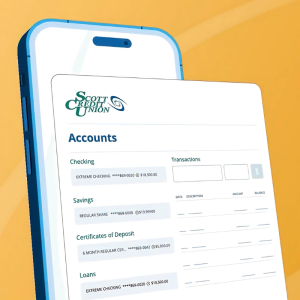
The SCU Digital Banking app lets you check account balances, transfer funds, deposit checks, and more, all from a convenient smartphone app for iOS and Android. Be sure to search “Scott Credit Union” in the app store and look for the icon shown below.



Your mobile service provider may charge Internet access fees. Web access is needed for SCU Mobile. Check with your service provider for details on specific fees and charges for mobile internet access.
When you choose to receive e-statements instead of mailed paper statements, you receive an email notification from us when your statements are available. You can then log in to your SCU Digital Banking account to view your statement.
Benefits of E-Statements Include:

*There is a $2.00 monthly paper statement fee for members with checking accounts, excluding Classic Club and Student Debit. This fee can be avoided by enrolling in e-statements.
To Enroll in E-statements:
- Log in to your SCU Digital Banking account
- In the navigation menu, find the Tools & Services section and click on eDocuments
- Click Settings and choose Subscribe
- Agree to the terms and click Subscribe again
Once you have enrolled, each month you will receive an email notification that your SCU e-statement is available inside your Digital Banking account.
If you have questions, please email us at [email protected] or call 618-345-1000.
Getting Started
Bill Pay Users, please reference the Bill Pay/Transfers section below for initial login instructions or click here for step-by-step instructions.
New Users:
- Open the refreshed Scott Credit Union digital banking app.
- Click “Register New Account”.
- Read and check “I Agree” to the Disclosure.
- Confirm Your Identity.
- You will need
- Social Security Number/TaxID and Birth Date.
- Plus, two of the following:
- Member Number
- Email Address
- Debit Card Number
- You will need
- To find your Member Number.
- Log in to the existing platform, go to “Accounts,” click “Share Account,” then “Details and Settings.” Finally, scroll down until you see “Account Number.” This is your Member Number.
- Create a Username and Password.
- Follow the prompts to verify your contact information and sign up for E-Statements.
- Turn on biometrics or skip to next screen.
- You are now in the new platform! Complete these final steps:
- Set Up Scheduled Payments
- Set Up Transfers
- Refer to the FAQs for questions
After you have logged in for the first time and updated your password, go to “Settings” located under your name in the top right corner. Select “Security” and make your changes. You can update your username and/or password and manage multi-factor authentication options.
Bill Pay users will log in slightly differently than other users. Click here for step-by-step instructions on how to access the platform.
Yes, QuickBooks and Quicken are available.
Accounts
- On the main Dashboard, scroll down to the Loans section. Click Account Details to see additional loan details.
- On the main Dashboard, click on the corresponding account. Click Account Details to find the information needed.
-
Yes, you are able to lock and unlock your debit card.
Deposits/Payments
- On the main Dashboard, click the account the check was deposited into.
- Under Transaction, click the Filter option (funnel icon).
- Under Type, select Check.
- Select the check you want to review, and the image will display.
- Although images won’t display of checks you’ve deposited, you will see your mobile deposit information in your transaction history. You can view your mobile deposit activity under the deposit check menu by clicking on the activity tab.
- On the main Dashboard, select Transfer & Pay from the top navigation.
- Select Transfer & Pay from the drop down.
- Click Add Account.
- Select Add an External Account.
- Choose your Financial Institution and enter the requested information.
- If your Financial Institution does not participate, select Manually Add an External Account to initiate a verification.
- Ensure the login information for the bank you are attempting to link is correct.
- Contact your external Financial Institution to troubleshoot linking the account or select Manually Add an External Account from the Add Account menu.
- After linking your external account, you will be able to transfer funds from an external Financial Institution to SCU or from SCU to an external Financial Institution. You will also be able to pay most loans directly from an external account.
- On the main Dashboard, select Transfer & Pay from the top navigation.
- Select Transfer & Pay from the drop down.
- Click Add Account.
- Select Link to another Scott Credit Union Member’s account to send them money and enter Recipient information and Account details.
Message Center
- The Message Center allows you to send secure messages to Scott Credit Union. A designated representative will reply within three business days.
- Most alerts will be sent out to members in batches. Collections occur at 12 AM, 6 AM, 12 PM, and 6 PM. Some alerts, like Mobile Deposit notifications, are real-time.
- Yes, alerts can now be sent via mobile SMS, email, or push notification to the app on a mobile device.
- If you wish to receive alerts on mobile, you must follow these steps:
-
- On the main Dashboard, under the Tools & Services tab in the navigation, select Settings in the dropdown.
-
- In Settings at the top, select Contact.
-
- Click on the pencil icon to the right of MOBILE.
-
- Ensure the box is checked that states I Would like to Receive SMS Text Messages To This Number.
To opt in to alerts, follow these steps:
-
- On the main Dashboard, under the Tools & Services tab in the navigation, select Alerts.
-
- This will display a list of categories. Within each category is a list of available alerts.
-
- To set delivery preferences, select from this subcategory list to choose delivery method.
CONTACT OUR MEMBER SUPPORT TEAM
Get Help With SCU Digital Banking
At SCU, we’re with you for every financial need, including questions about our services or membership accounts. Visit our Member Support page to find the information you need and request additional information or help.